PDF-AI-Viewer
 # PDF 阅读翻译器 / PDF Reader & Translator
读英文文献太慢?划词即译,一句话让 AI 总结整篇论文,读完自动变成你自己的 `.md` 笔记。
**免费、开源、单文件免安装。**
A desktop PDF reader with select-to-translate, AI full-document summary and ask-the-paper chat.
**Free, open source, single-file portable.**
[](https://github.com/fangvv/PDF-AI-Viewer/stargazers)
[](https://github.com/fangvv/PDF-AI-Viewer/forks)
[](LICENSE)
[](https://www.python.org/)
[](#-快速开始--quick-start)
# PDF 阅读翻译器 / PDF Reader & Translator
读英文文献太慢?划词即译,一句话让 AI 总结整篇论文,读完自动变成你自己的 `.md` 笔记。
**免费、开源、单文件免安装。**
A desktop PDF reader with select-to-translate, AI full-document summary and ask-the-paper chat.
**Free, open source, single-file portable.**
[](https://github.com/fangvv/PDF-AI-Viewer/stargazers)
[](https://github.com/fangvv/PDF-AI-Viewer/forks)
[](LICENSE)
[](https://www.python.org/)
[](#-快速开始--quick-start)
面向研究生、科研党,以及任何需要大量阅读英文文献的人。 Built for graduate students, researchers, and anyone who has to read a lot of English papers.
📖 目录 / Table of Contents
🚀 快速开始 / Quick Start
Windows 用户:下载这一个文件,双击即用。不需要装 Python,不需要配环境。
- 下载
PDF阅读翻译器.exe(约 60 MB,免安装便携版) - 双击打开,把 PDF 拖进窗口
- 刷选文本点「翻译」即可 —— 微软 Edge / MyMemory 引擎无需任何 API Key,开箱即用
- 只有想用「大模型翻译 / 全文总结 / AI 问答」时,才需要在「设置 → 大模型设置」填一次 Key
也可以到 Releases 或仓库的
dist/目录获取。
Windows users: download one file and double-click it. No Python, no environment setup.
- Download
PDF阅读翻译器.exe(~60 MB, portable build) - Double-click it and drag a PDF into the window
- Select text and click “Translate” — the Microsoft Edge / MyMemory engines need no API key at all
- A key is only required for LLM translation / summary / AI chat, configured once under “Settings → LLM Settings”
不想下载 exe?从源码运行 只需 3 行命令。 Prefer the source? Run from source in 3 commands.
📸 界面一览 / Screenshots
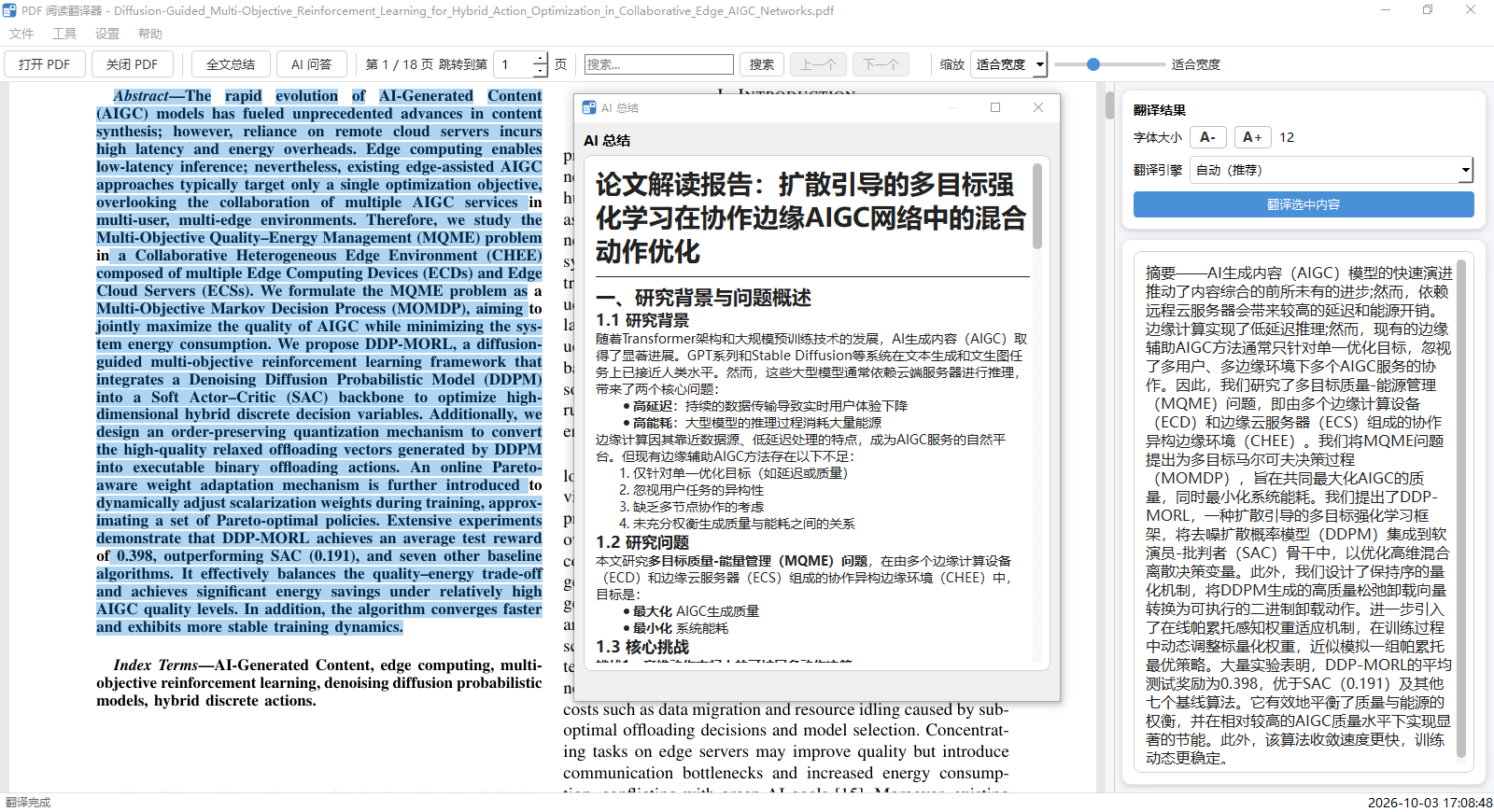
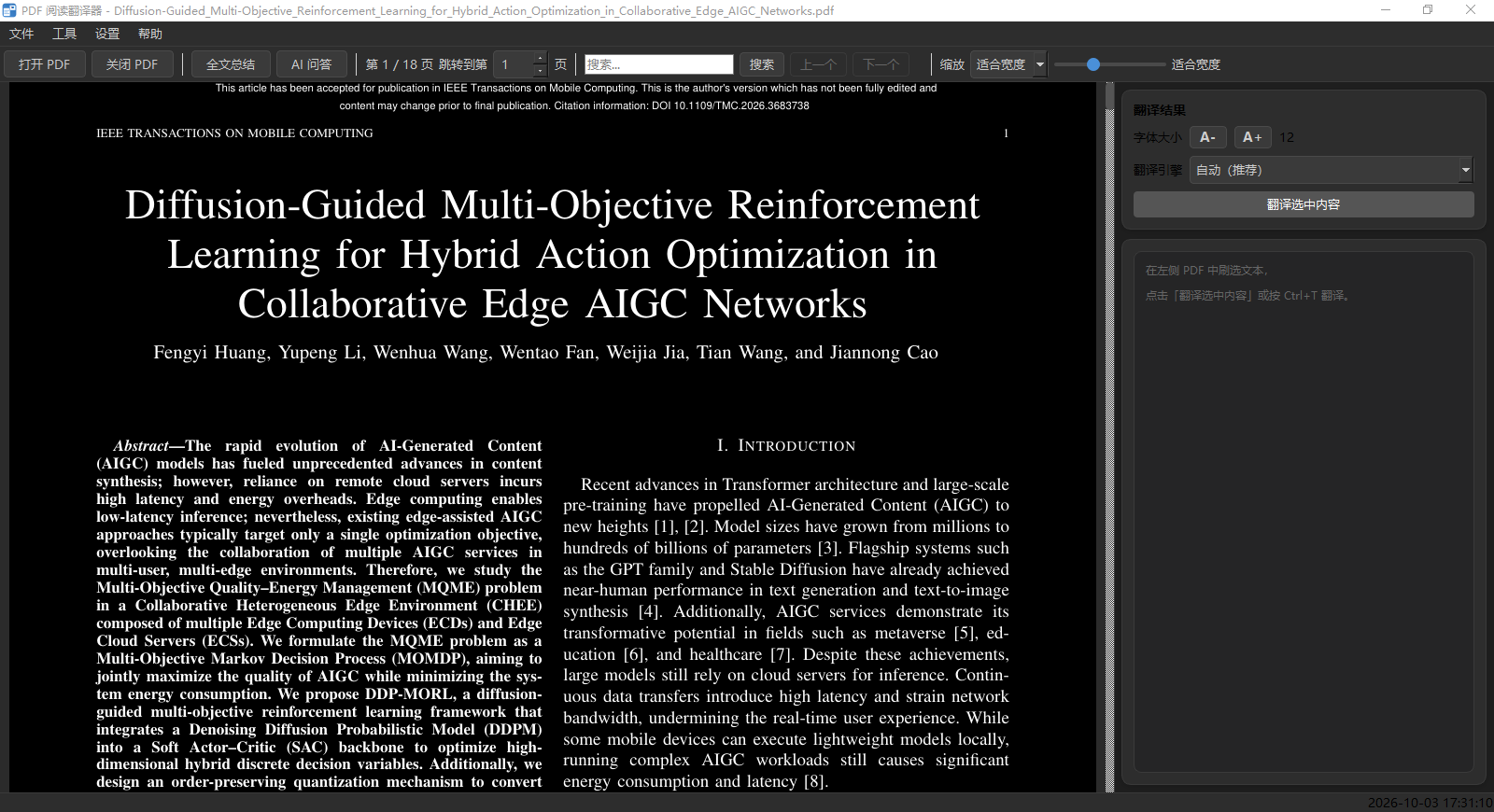
左侧阅读 PDF,右侧看译文,中间浮着 AI 总结报告。夜间模式下 PDF 页面自动反色(白底变黑底),工具栏、翻译面板与问答窗口同步切换。
PDF on the left, translation on the right, AI summary report floating in the middle. In dark mode PDF pages are automatically inverted, and the toolbar, translation panel and chat window follow the theme.
| 日间主题:主界面与 AI 总结 Light: main window with the AI summary |
夜间主题:PDF 页面自动反色 Dark: PDF pages automatically inverted |
|---|---|
 |
 |
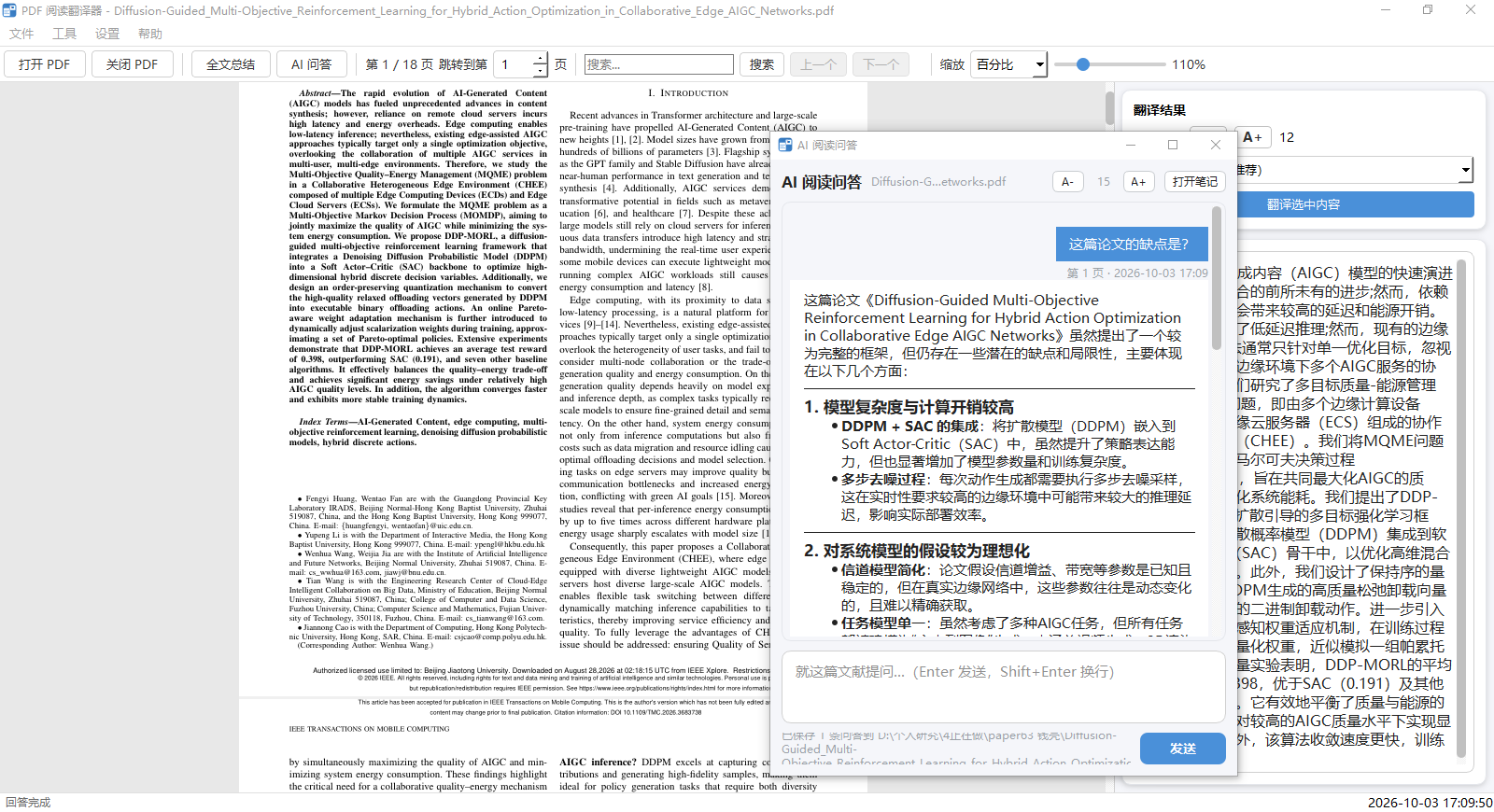
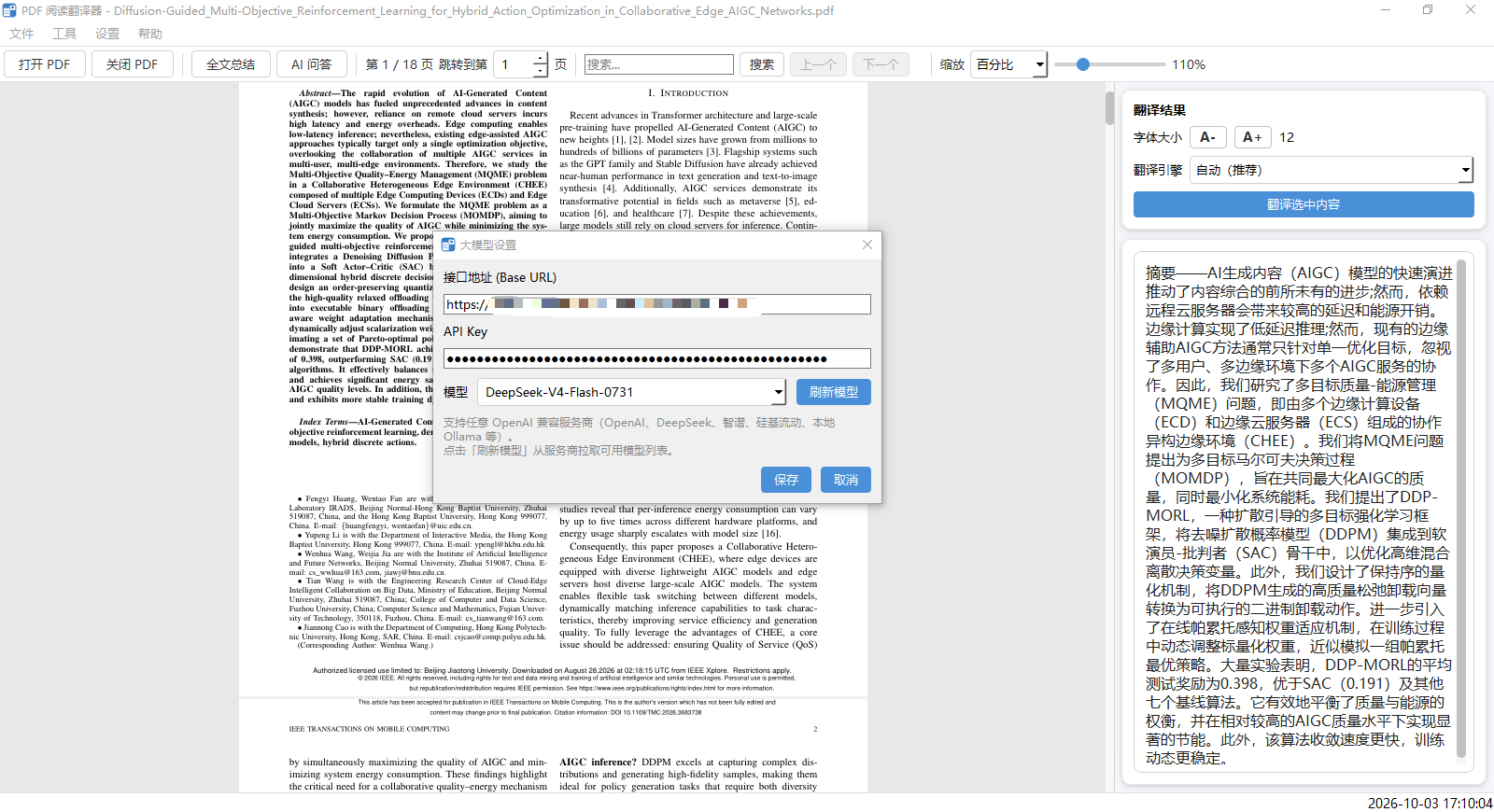
| AI 阅读问答:整篇文献随行,问完即成笔记 AI chat: the whole paper as context, every Q&A becomes a note |
大模型设置:任意 OpenAI 兼容服务商,模型可下拉拉取 LLM settings: any OpenAI-compatible provider |
|---|---|
 |
 |
⭐ 为什么选它 / Why This One
| 读文献时 | 没有工具的日子 | 用本项目 |
|---|---|---|
| 遇到生词长句 | 复制到翻译网页,窗口来回切 | 刷选文本,翻译按钮就在鼠标旁,原地出译文 |
| 想知道论文讲了什么 | 从头读到尾,自己抄要点 | 「全文总结」一键生成结构化报告,流式输出 |
| 有疑问要追问 | 手动复制段落去问大模型 | 「AI 问答」自动带上整篇文献,多轮追问 |
| 读完留个记录 | 新建文档一条条敲 | 问答自动写进同名 .md,重开文献即恢复 |
| 晚上读文献 | 白底屏幕刺眼 | 夜间模式,PDF 页面自动反色 |
| 二次开发 / 自己接模型 | 没门 | MIT 开源,支持任意 OpenAI 兼容接口 |
本表只对照「没有工具时的手工流程」,不评价其他任何软件。上表本项目一栏均为当前版本的实际能力,其余以各软件官方说明为准。
一句话:它不只是「多一个翻译按钮」,而是把读完一篇论文做成一条流水线 —— 划词翻译 → 全文总结 → 边读边问 → 自动生成笔记。
In short: not just “another translate button” — it turns finishing a paper into one pipeline: select-to-translate → full-document summary → ask the paper → notes written automatically.
功能特性 / Features
- 📄 PDF 阅读:按需渲染,打开大文件也不卡顿;支持适合页面 / 适合宽度 / 百分比三种缩放模式,也可用
Ctrl + 滚轮快速缩放 - 🖱️ 鼠标刷选翻译:按段落刷选文本,保持句子连续性,翻译效果更好
- 🎯 浮动翻译按钮:刷选文本后,翻译按钮自动出现在鼠标附近,点击即可翻译,无需移动鼠标
- 🌐 多翻译引擎:内置微软 Edge、通用 OpenAI 兼容大模型、MyMemory 三个接口,可自动回退或手动选择
- 🤖 全文总结:对整篇论文调用大模型生成结构化总结(背景、方法、数据、结论、优缺点、后续方向),流式输出实时显示,独立可缩放窗口,支持 Markdown 渲染与公式显示
- 💬 边读边问(AI 问答):阅读时随时呼出独立对话窗口,用同一套大模型配置多轮提问,每次提问自动附带整篇文献作上下文(同 Chatbox 附加文件);问答自动追加到与 PDF 同目录同名的
.md笔记(A.pdf→A.md),重开文献即恢复历史;支持流式输出、随时中断、字号调节、夜间主题,可一键用系统默认程序打开笔记 - 🔍 全文搜索:关键词全文搜索,结果黄色高亮并自动垂直居中定位,支持上一个/下一个循环跳转
- 📂 拖拽打开:直接把 PDF 文件拖到窗口即可打开
- 🖥️ 窗口状态记忆:记住上次关闭时的窗口大小、位置与最大化状态
- ⚙️ 大模型设置:支持任意 OpenAI 兼容服务商(OpenAI、DeepSeek、智谱、硅基流动、本地 Ollama 等),模型名可从服务商下拉拉取
- 📌 阅读位置记忆:自动记录每个 PDF 的阅读位置,下次打开自动跳转
- 🕘 最近打开历史:记录最近打开的 10 个文件,支持一键清空
- 🔗 PDF 链接可点击:悬停显示手型光标,点击用系统浏览器打开;正文中的参考文献引用(内部链接)点击可直接跳转到文末对应条目
- 🌙 日间/夜间主题:设置菜单可切换日间与夜间模式,夜间模式下 PDF 页面自动反色(白底变黑底),晚上读论文不刺眼
- ⌨️ 快捷键:
Ctrl + / Ctrl -调节缩放,Ctrl + L切换全屏,Ctrl + T翻译,Ctrl + Shift + Q呼出 AI 问答 - 🔐 API Key 安全存储:大模型 Key 存入 Windows 凭据管理器(keyring),不落盘明文
- 🕐 状态栏日期时间:右下角实时显示当前日期和时间,左侧显示当前翻译引擎状态
- 🎨 界面美化:右侧面板卡片化(圆角 + 阴影)、翻译结果 Markdown 渲染、浮动按钮淡入动画、可调翻译字体、内置 Logo、关于对话框(含官网链接)
- 📄 PDF reading: on-demand rendering, smooth even for large files; supports Fit Page / Fit Width / Percentage zoom modes
- 🖱️ Select-to-translate: selects text by paragraph to preserve sentence continuity for better translations
- 🎯 Floating translate button: appears near the mouse after selecting text; click to translate without moving the mouse
- 🌐 Multiple translation engines: built-in Microsoft Edge, generic OpenAI-compatible LLM, and MyMemory, with auto-fallback or manual selection
- 🤖 Full-document summary: summarizes the entire paper via LLM (background, methods, data, findings, pros/cons, future work) with streaming output, shown in a resizable standalone window with Markdown rendering and formula display
- 💬 Ask while reading (AI chat): summon a standalone chat window anytime and ask multi-turn questions using the same LLM configuration, with the whole document automatically attached as context (like attaching a file in Chatbox); every Q&A is appended to a Markdown note next to the PDF (
A.pdf→A.md), history is restored when you reopen the file; answers stream in, can be interrupted, with adjustable font size, dark theme and one-click “open note” in your system editor - 🔍 Full-text search: keyword search across the whole document, results highlighted in yellow and auto-centered vertically, with prev/next cyclic navigation
- 📂 Drag & drop: drag a PDF file onto the window to open it
- 🖥️ Window state memory: remembers window size, position, and maximized state from the last session
- ⚙️ LLM settings: supports any OpenAI-compatible provider (OpenAI, DeepSeek, Zhipu, SiliconFlow, local Ollama, etc.); model names can be fetched from the provider
- 📌 Reading position memory: automatically remembers the position of each PDF and resumes there next time
- 🕘 Recent files: remembers the last 10 opened files, with one-click clear
- 🔗 Clickable PDF links: shows a hand cursor on hover, opens in the system browser on click; in-text reference citations (internal links) jump directly to the corresponding entry at the end of the document
- 🌙 Light/Dark theme: switch between light and dark modes in the Settings menu; in dark mode the PDF pages are automatically inverted (white background becomes black) for comfortable night reading
- ⌨️ Shortcuts:
Ctrl + / Ctrl -to zoom,Ctrl + Lto toggle fullscreen,Ctrl + Tto translate,Ctrl + Shift + Qto open the AI chat - 🔐 Secure API key storage: LLM key is stored in the Windows Credential Manager (keyring), never in plaintext
- 🕐 Status bar clock: shows the current date and time in the bottom-right corner, plus the active translation engine on the left
- 🎨 Polished UI: card-based right panel (rounded corners + shadow), Markdown rendering for translation results, fade-in animation for the floating button, adjustable translation font, built-in logo, About dialog (with website link)
使用说明 / Usage
- 点击「打开 PDF」或使用
Ctrl + O打开一个 PDF 文件(也可直接把 PDF 拖到窗口) - 在左侧 PDF 中用鼠标刷选要翻译的文本,翻译按钮会出现在鼠标附近,点击即可翻译
- 翻译结果显示在右侧;也可点击「翻译选中内容」或按
Ctrl + T - 可在右上角选择翻译引擎(自动 / 微软 Edge / 大模型 / MyMemory)
- 使用「A- / A+」按钮调节翻译字体大小
- 缩放:工具栏选择适合页面 / 适合宽度 / 百分比,或按住
Ctrl滚动鼠标滚轮快速缩放 - 点击工具栏「全文总结」对整篇论文生成总结,结果在独立窗口中流式显示
- 点击工具栏「AI 问答」或按
Ctrl + Shift + Q呼出问答窗口,边读边提问;Enter发送,Shift + Enter换行,回答期间按钮变「停止」可随时中断 - 问答会自动写入与 PDF 同目录同名的
.md文件,可随时点「打开笔记」用系统默认程序查看/编辑 - 在工具栏搜索框输入关键词回车,即可全文搜索并高亮定位,支持「上一个 / 下一个」跳转
- 首次使用大模型翻译或总结前,请到「设置 → 大模型设置」填写接口地址、API Key 和模型名(AI 问答使用同一套配置)
- 夜间阅读可到「设置 → 主题」切换夜间模式,PDF 页面会自动反色,问答窗口同步切换
- 若 PDF 自带内部链接,点击正文中的参考文献引用(如 [1])可直接跳转到文末对应条目
- 关闭程序后,下次打开同一 PDF 会自动跳转到上次阅读位置,并恢复窗口与问答窗口状态
- Click “Open PDF” or press
Ctrl + Oto open a PDF file (or drag a PDF onto the window) - Select the text you want to translate in the PDF on the left; a translate button appears near the mouse — click it to translate
- The result appears on the right; you can also click “Translate Selected” or press
Ctrl + T - Choose a translation engine in the top-right (Auto / Microsoft Edge / LLM / MyMemory)
- Use the “A- / A+” buttons to adjust the translation font size
- Zoom: choose Fit Page / Fit Width / Percentage in the toolbar, or hold
Ctrland scroll the mouse wheel for quick zoom - Click “Full-document Summary” in the toolbar to summarize the entire paper; the result streams into a standalone window
- Click “AI Chat” in the toolbar or press
Ctrl + Shift + Qto open the chat window and ask questions while reading;Entersends,Shift + Enterinserts a line break, and the button turns into “Stop” so you can interrupt an answer - Each exchange is written automatically into a
.mdfile in the same folder as the PDF; click “Open Note” to view/edit it with your default editor - Type a keyword in the toolbar search box and press Enter to search the whole document with highlighted, centered results; use “Prev / Next” to navigate
- Before using LLM translation or summary for the first time, configure the base URL, API key, and model under “Settings → LLM Settings” (the AI chat reuses the same configuration)
- For night reading, switch to dark mode under “Settings → Theme”; PDF pages are inverted and the chat window follows the theme
- If the PDF has internal links, click an in-text reference citation (e.g. [1]) to jump directly to the corresponding entry at the end of the document
- After closing, reopening the same PDF resumes at your last reading position and restores both window states
大模型设置 / LLM Settings
本软件支持任意 OpenAI 兼容 的大模型接口,由用户自行选择服务商并填写:
This software supports any OpenAI-compatible LLM endpoint. You choose the provider and fill in:
- 接口地址 (Base URL):例如
https://api.openai.com/v1、https://api.deepseek.com/v1、https://api.siliconflow.cn/v1等 - API Key:从服务商获取,安全存入 Windows 凭据管理器
-
模型名 (Model):可手动输入,或点击「刷新模型」从服务商自动拉取下拉列表
- Base URL: e.g.
https://api.openai.com/v1,https://api.deepseek.com/v1,https://api.siliconflow.cn/v1, etc. - API Key: obtained from the provider, securely stored in the Windows Credential Manager
- Model: can be typed manually, or fetched from the provider via the “Refresh Models” button
边读边问 / Ask While Reading
打开 PDF 后,点击工具栏「AI 问答」或按 Ctrl + Shift + Q 呼出对话窗口(非模态,不挡住阅读)。提问后:
- 回答流式显示,右侧蓝色气泡是你的问题,左侧卡片是 AI 回答(支持 Markdown)
- 每次提问会自动把整篇文献的全文(约 6 万字符内)随问题一起发给模型,相当于 Chatbox 里附加文件,所以可以直接问「这篇论文的创新点是什么」;扫描件等提取不出文本的 PDF 则不带文献,退回普通对话
- 每一轮问答都会自动追加到与 PDF 同目录、同名的
.md文件:A.pdf→A.md - 重新打开这份文献时,历史问答会自动读回,可以接着聊;问模型时只带最近的对话作为上下文
.md就是你自己的学习笔记,可以用任意编辑器继续修改、补充
After opening a PDF, click “AI Chat” in the toolbar or press Ctrl + Shift + Q to summon the chat window (non-modal, so it never blocks reading):
- Answers stream in; your question is the blue bubble on the right, the AI answer is the card on the left (Markdown supported)
- Every question automatically carries the full text of the document (up to ~60k characters) alongside it — the same as attaching a file in Chatbox — so you can directly ask “what are this paper’s contributions”; scanned PDFs with no extractable text fall back to plain conversation
- Every exchange is appended automatically to a
.mdfile in the same folder with the same base name:A.pdf→A.md - Reopening the document reloads your history so you can continue the conversation; only recent turns are sent as context
- The
.mdfile is your own study note — edit and annotate it in any editor
笔记文件格式(可手工编辑)/ Note file format (hand-editable):
# A.pdf 阅读问答记录

## 1. 问:为什么要用 Transformer?
> 第 3 页 · 2026-09-30 14:22

**答:**

因为……

---
若 PDF 所在目录不可写(只读光盘、被其他程序占用等),本次问答会改存到 ~/.pdftranslator/chatnotes/ 并在窗口内提示,内容不会丢。
If the PDF’s folder is not writable (read-only media, file locked by another program, etc.), that exchange is saved to ~/.pdftranslator/chatnotes/ instead and the window tells you — nothing gets lost.
❓ 常见问题 / FAQ
| 问题 | 回答 |
|---|---|
| 免费吗?会不会有广告、会员、次数限制? | 完全免费开源(MIT),无广告、无会员、不限次数 |
| 一定要填 API Key 才能用吗? | 不需要。划词翻译选「微软 Edge / MyMemory」开箱即用;只有 AI 总结、AI 问答、大模型翻译需要 Key |
| 我的 API Key 安全吗? | Key 只存在本机的 Windows 凭据管理器中,不写进配置文件、不上传、不发送到除服务商以外的任何地方 |
| AI 会把我的论文传到云上吗? | 只有在你使用大模型相关功能时,文本才会按你填的接口地址发给对应服务商;纯翻译用 Edge / MyMemory 走各自的公开接口 |
| 有 exe 还要装 Python 吗? | 不用,dist/PDF阅读翻译器.exe 双击即用,配置也只写在用户目录 |
| 支持 macOS / Linux 吗? | 目前只提供 Windows 版。核心是 Python + PyQt6,跨平台移植门槛不高,欢迎提 Issue / PR |
| 几百页的论文会卡吗? | 页面按需渲染,滚动大文件依然流畅 |
| 扫描版 PDF(纯图片)能用吗? | 翻译与总结依赖可提取的文本;提取不出文本时 AI 问答会自动退回普通对话(软件本身暂不含 OCR) |
| 界面能改吗?想二次开发 | 可以,MIT 许可,代码结构见项目结构,AGENTS.md 里有开发约定 |
| Question | Answer |
|---|---|
| Is it free? Any ads, plans or quotas? | Completely free and open source (MIT). No ads, no paid plans, no usage caps |
| Do I need an API key to use it? | No. Select-to-translate works out of the box with Microsoft Edge / MyMemory; a key is only needed for LLM translation, summary and AI chat |
| Is my API key safe? | It is stored only in your local Windows Credential Manager — never in a config file, never uploaded anywhere except to the provider you configured |
| Does the AI upload my paper to the cloud? | Only when you use LLM features, and only to the provider endpoint you typed in |
| Do I need Python if there is an exe? | No — dist/PDF阅读翻译器.exe just runs; settings are kept in your user folder |
| macOS / Linux support? | Windows-only for now. The core is Python + PyQt6, so a port is not far off — Issues and PRs welcome |
| Will a 500-page paper lag? | Pages render on demand, so scrolling large files stays smooth |
| What about scanned (image-only) PDFs? | Translation and summary rely on extractable text; if there is none, AI chat falls back to plain conversation (the app has no built-in OCR yet) |
| Can I modify it / build on it? | Yes, MIT licensed — see the project structure; AGENTS.md documents the conventions |
安装与运行(源码)/ Installation & Run (from Source)
需要 Python 3.9+。
Requires Python 3.9+.
# 克隆仓库 / Clone the repository
git clone https://github.com/fangvv/PDF-AI-Viewer.git
cd PDF-AI-Viewer

# 安装依赖 / Install dependencies
pip install -r requirements.txt

# 国内用户可使用清华源加速 / Chinese users can use the Tsinghua mirror
pip install -r requirements.txt -i https://pypi.tuna.tsinghua.edu.cn/simple

# 运行 / Run
python main.py
打包自己的 exe(需先安装 PyInstaller)/ Build your own exe (requires PyInstaller):
pyinstaller --noconfirm "PDF阅读翻译器.spec"
# 产物 / Output: dist/PDF阅读翻译器.exe
🤝 反馈与贡献 / Feedback & Contributing
- 遇到问题、想要新功能:提 Issue
- 欢迎 PR:先开 Issue 说明改动思路,再提 PR 更容易被合入
-
想参与开发:先看 AGENTS.md,里面记录了工程约定与打包坑
- Found a bug or want a feature? Open an Issue
- PRs welcome — opening an Issue first makes yours easier to review
- Want to hack on it? Start with AGENTS.md for conventions and packaging gotchas
如果这个工具帮你省下了一点读文献的时间,点个 ⭐ 就是最快的支持。 If it saved you some time on papers, a ⭐ is the quickest way to say thanks.
项目结构 / Project Structure
pdf_translator/
├── main.py          # 主窗口:分栏布局、工具栏、菜单栏、翻译/总结/问答线程、浮动按钮
├── pdf_viewer.py    # PDF 阅读器:按需渲染、刷选、缩放、链接点击
├── translator.py    # 翻译引擎:Edge / OpenAI 兼容大模型 / MyMemory,流式总结与多轮对话
├── chat_window.py   # AI 阅读问答:浮动对话窗口(气泡渲染、流式显示、字号与主题)
├── chat_log.py      # 问答记录读写:与 PDF 同目录同名的 .md 笔记
├── latex_fallback.py# LaTeX 公式 → Unicode 兜底转换(总结与问答共用)
├── settings.py      # 配置存储:阅读位置、最近历史、界面设置、大模型配置
├── make_logo.py     # Logo 生成脚本
├── requirements.txt # 依赖清单
├── AGENTS.md        # 给 AI 助手/开发者的工程说明与约定
├── LICENSE          # MIT 许可证
├── dist/            # 打包产物(PDF阅读翻译器.exe)
├── screenshot1–4.png    # 界面截图(日间主界面 / 问答 / 大模型设置 / 夜间)
└── logo.ico / logo.png  # 应用图标
技术栈 / Tech Stack
翻译引擎 / Translation Engines
| 引擎 / Engine | 说明 / Description | 需要 Key |
|---|---|---|
| 微软 Edge / Microsoft Edge | 官方翻译接口,质量稳定 | 否 |
| 大模型 / LLM | 通用 OpenAI 兼容大模型,翻译质量高,可做 AI 总结 | 是(可选) |
| MyMemory | 免费在线翻译服务 | 否 |
选择「自动」时,程序会依次尝试各引擎,直到成功为止。
When “Auto” is selected, the program tries each engine in turn until one succeeds.
许可证 / License
致谢 / Acknowledgements
- 灵感来自「知云文献翻译」/ Inspired by “Zhiyun Literature Translation”
- 感谢 PyQt6、PyMuPDF 等开源项目 / Thanks to PyQt6, PyMuPDF and other open-source projects